

Today, most people use their smartphones as cameras, which
can lead to memories being saved in many different places. However, not many
people print or back up these photos or share them with family. Usually, one
tech-savvy family member helps everyone else manage and print their digital
memories. But sending files to this person often means dealing with issues like
full emails, failed transfers, and lost data.
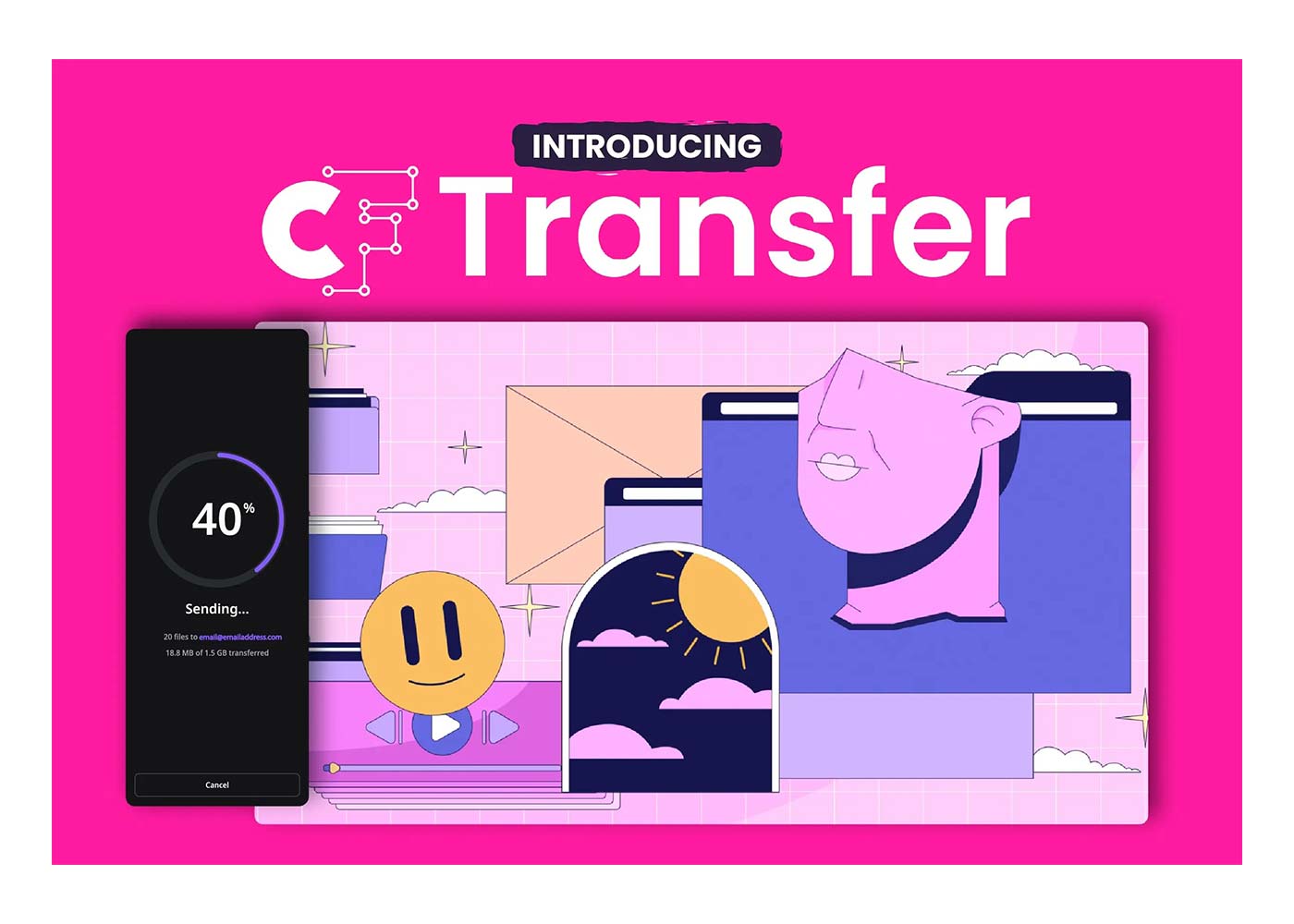
Transfer makes it easy to send large and bulk files
at once without filling up your cloud storage or email. Family members can
download these files whenever they like, which makes sharing memories simple.
Transfer can also send e-books, PDFs, and videos, helping keep family memories
safe and easy to look at again in the future.
Transfer is part of a wider suite offered by Creative Fabrica known as Studio. This sets it apart from other services that focus
solely on data transfer; instead, offering a suite of tools that caters to the
creative community This creative hub enables users to create design projects
with innovative tools incorporating AI generation, image editing, vector
design, and layout software.
How does it work?
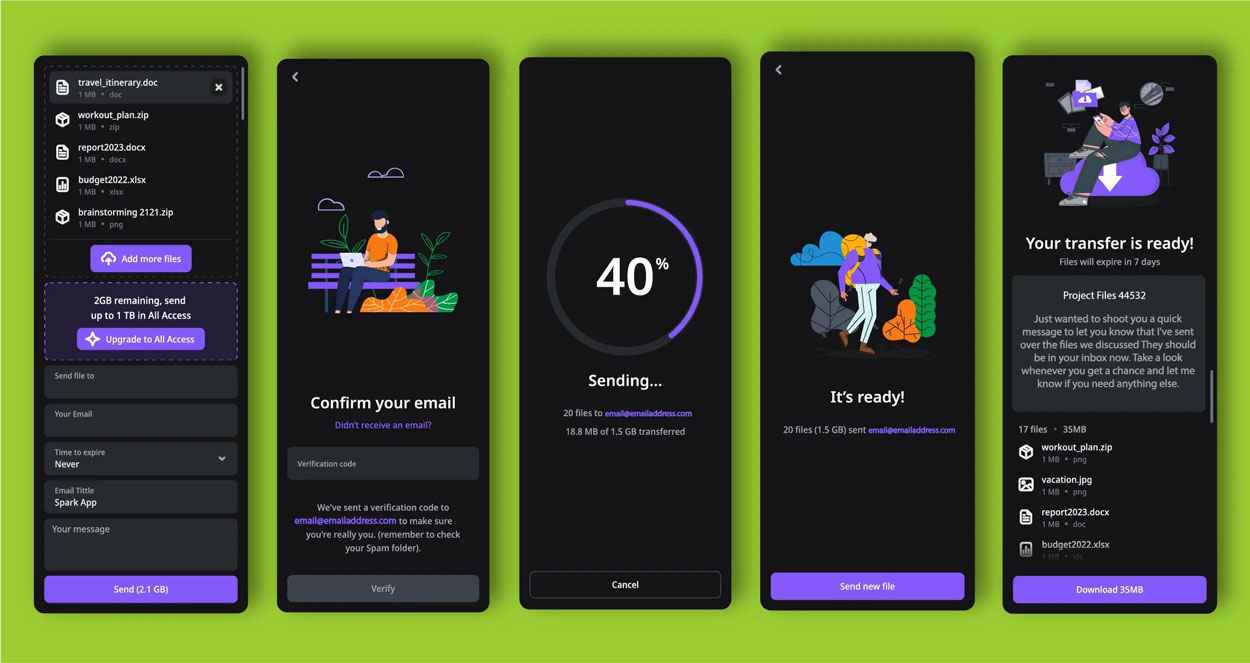
So essentially you are uploading your files to a secure
cloud server, for the recipient to download at their leisure within 30 days. Up
to 2GB can be sent as a free secure file transfer.
Sending your files
1. Firstly, go to https://studio.creativefabrica.com/transfer
2. In the top box, you can either drag in a group of files
or click to access your files in Finder (Mac) or File Explorer (PC). To select
multiple files, click your first file, press and hold shift, and select the last
file. Press OK to return to the main Transfer screen.
3. If your files are under 2GB you can transfer for free.
This option makes sense if you have lots of family members all sending to one
point. You can send as many Transfers as you like.
4. Next, in the box below, add the email address of the
techy family member.
5. Then, add your address in the box below that.
6. Finally, beneath this, you can add a subject line (such
as Birthday Party) and a short message to go with your files.
7. Click on send to begin the upload process, and an email
will be sent to you with a confirmation code. Enter this confirmation code into
Transfer.
8. Once complete, an email will be sent with a link to your
family member, as well as a confirmation of delivery email to you. You will get
another email once downloaded.
Success! You have now sent your first files with Transfer.
It really is that easy, and all your family members can join in the fun. You
can send photos and videos but also text files with stories, family jokes and
sayings, and even newspaper clippings.
Transfer forms part of Creative Fabrica’s Studio service
which can be used to gather photos and more into a format all family members
can enjoy. However, any software or file format can be used depending on what
you are looking to include and how you would like to output it. There are many
book printing services individuals can now use to output PDF files and more; or
you can keep it entirely digital with interactive elements like videos, web
links, sounds, and simple puzzles.
Once assembled, the techy family member can then send the
album or video back to all of the family members as follows…
Sending an album or video
1. Firstly, they go to https://studio.creativefabrica.com/transfer
2. In the top box, they can either ‘drag’ in the album/video
or ‘click’ to access their files in Finder (Mac) or File Explorer (PC).
3. If the file is under 2GB, it can be transferred for free.
However, if there are a lot of image and video files included into one album,
more capacity may be needed... Sending large files (over 2GB): As it is one
file, you can’t split it across multiple Transfers. Instead, you can increase
the allowance up to 1TB by joining Creative Fabrica’s All Access subscription
(this gives you access to lots of content for your album too!). You can also
set a longer expiry date for your download of up to a year, or as little as one
day.
4. Next, in the box below, they add the email addresses for
all your family members by typing your first address, pressing [,], and
entering the next with no spaces. Separating each by a comma means you can add
multiple recipients for the same file. This saves you so much time and energy.
5. Then, they add their address in the box below that.
6. Finally, beneath this, they should add a subject line
(such as Birthday Party Album) and a short message to go with the file.
7. Next, they click on send to begin the upload process, and
an email will be sent to them with a confirmation code. They then enter this
confirmation code into Transfer.
8. Once complete, an email will be sent with a link to all
your family members, as well as a confirmation of delivery email to your techy
family member. They will get another email once downloaded by each individual
address.
Transfer simplifies the process of sharing photos, videos,
and stories. Gone are the days of swapping DVDs and USB sticks; with Transfer,
sending is nearly instant. Each downloaded file becomes a cherished memory that
can be saved to a hard drive or even burned to a DVD for a permanent copy.
This tool isn't just for parties—it's also perfect for
compiling family history projects, making family announcements, and much more!
So, the next time you have something important to share, use
Transfer.
Share:


