

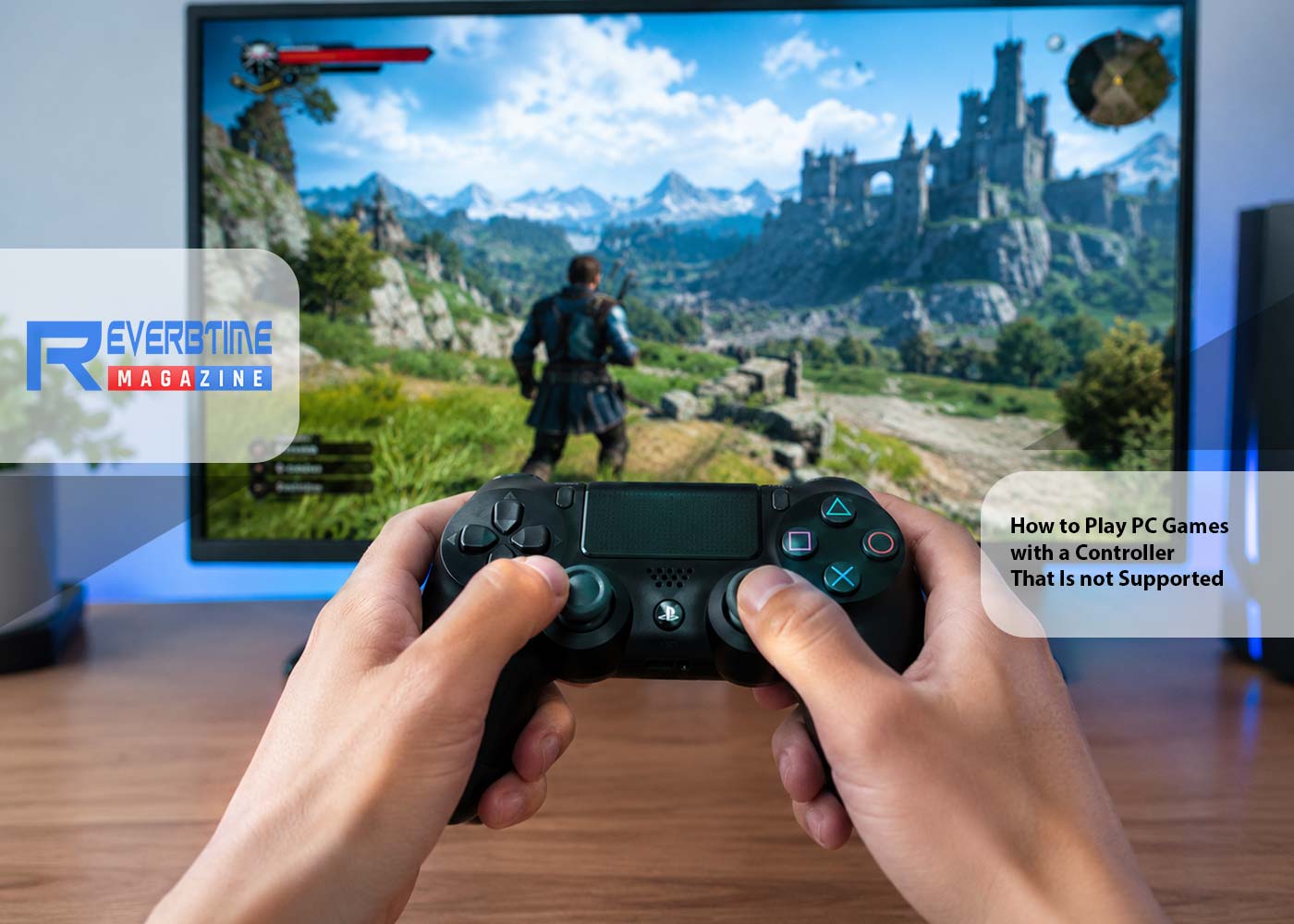
PC gaming is traditionally associated with a keyboard and
mouse, but a controller can be much more comfortable for many types of games. Racing
games, platformers, action games, sports titles, and some RPGs can feel more
natural with a gamepad.
The problem is that not every PC game supports every
controller. A game may support Xbox controllers but fail to recognize a
PlayStation or third-party gamepad. Other games may not have controller support
at all and expect the player to use keyboard and mouse controls.
Fortunately, an unsupported controller does not necessarily
mean you have to give up on playing with a gamepad. With the right configuration,
you can translate controller inputs into keyboard and mouse commands or make
your physical controller appear to the game as a compatible virtual controller.
Why Doesn’t a PC Game Recognize My Controller?
There are several reasons why a controller may work
perfectly in Windows but not inside a particular game.
The Game Only Supports Certain Controllers
Some games are designed around a specific controller input
standard. For example, a title may be optimized for Xbox-style input and fail
to recognize a different gamepad correctly. This does not always mean that the
controller itself is defective. The issue can simply be that the game does not
understand the type of input the device is sending.
The Game Only Supports Keyboard and Mouse
Older PC games and some modern titles are designed
exclusively around keyboard and mouse controls. In this situation, connecting a
controller to the computer is not enough. The game is listening for keyboard
and mouse events rather than gamepad buttons.
A remapping application can solve this by translating
controller buttons into keyboard keys and controller sticks into mouse
movement. This gives you a way to use a gamepad even when the game has no
native controller support.
Different Input Standards
Another common source of compatibility problems is the
difference between input standards. A PC can recognize a controller while a
game expects a particular type of controller interface. As a result, the device
may appear to be connected correctly but remain unusable in the game.
This is where virtual controller emulation can be useful.
Instead of sending the original device's input directly to the game, remapping
software can create an emulated controller that matches the input type the game
expects.
Can You Play a PC Game with a Controller if It Doesn't Support Controllers?
Yes, in many cases you can. The basic idea is to create a
translation layer between the physical controller and the game. The controller
sends an input to the remapping software, and the software produces an output
that the game understands.
There are three common approaches.
Controller → keyboard
A controller button can be assigned to a keyboard key. For
example, pressing A could send Space.
Controller → mouse
An analog stick can be configured to emulate mouse movement,
while other controller buttons can act as mouse buttons.
Controller → virtual controller
The physical gamepad can be represented to the game as
another controller type. For example, software such as reWASD can emulate Xbox 360, Xbox One,
DualShock 3, DualShock 4, or Nintendo Switch Pro controllers.
Which method is best depends on what the game actually
expects.
What You Need to Play PC Games with an Unsupported Controller
Getting started does not require complicated hardware.
A Compatible Gamepad
First, you need a controller that can connect to your PC.
Depending on the device, this can be done through USB, Bluetooth, or a wireless
adapter. Xbox and PlayStation controllers are common choices, but many
third-party gamepads can also be used.
Before configuring anything, check whether Windows detects
the controller correctly. If the operating system cannot see the device at all,
remapping software may not be able to use it either.
A Windows PC
You also need a Windows computer that meets the requirements
of your chosen remapping application. For example, current reWASD documentation
lists Windows 10 64-bit and Windows 11 as supported operating systems.
A Gamepad Remapper
A gamepad remapper works as a translation layer between your
physical controller and the game. Instead of relying entirely on the game's
built-in controller settings, you can decide what each physical button should
send. A button can become a keyboard key, mouse input, or part of a virtual
controller configuration.
This is particularly useful when the game does not recognize
your particular controller or does not support gamepads at all.
How to Play PC Games with Controller Support Missing
Once your controller is connected, the general setup process
is straightforward.
Step 1: Connect Your Controller
Connect the gamepad to your PC using the appropriate
connection method. Check that Windows recognizes the device. Then open your
remapping software and select the controller.
In reWASD, for example, the basic workflow starts by
connecting the gamepad and selecting it from the device panel. You can then
choose an existing game profile or create a new one.
Step 2: Create a Game Profile
Create a separate configuration for the game you want to
play. A dedicated profile is useful because different games usually require
different layouts. Your ideal configuration for an RPG may be completely
different from the one you use for an FPS or racing game.
You can also look for existing configurations if the
software provides a community library. reWASD, for example, includes access to
community configurations that can be used as a starting point.
Step 3: Decide What Input the Game Needs
Before assigning buttons, determine what the game actually
understands. If the game only accepts keyboard and mouse input, create keyboard
and mouse mappings. If it supports a particular controller type but not yours,
consider virtual controller emulation. If the game already recognizes your
controller, you may only need to change individual buttons rather than emulate
another device. Choosing the right output first makes the rest of the
configuration much easier.
Map Controller Buttons to Keyboard Controls
Controller-to-keyboard mapping is one of the simplest ways
to use a gamepad with a PC game that has no controller support.
For example, you could create a layout like this:
|
Controller Input |
Keyboard Output |
|
A |
Space |
|
B |
Esc |
|
X |
E |
|
Y |
R |
|
Left Stick |
WASD |
|
Left Bumper |
Ctrl |
|
Right Bumper |
Shift |
When you press A on the controller, the remapping software
sends a Space input to the game.
This allows the game to work with the controller without
knowing that the original input came from a gamepad.
When Controller-to-Keyboard Mapping Makes Sense
This approach is particularly useful when:
- the game has no native controller support;
- the game expects keyboard shortcuts;
- you want to use a controller for movement;
- certain game actions are easier to access from a gamepad;
- you want to combine controller and keyboard inputs.
A remapping tool such as reWASD supports virtual keyboard
mappings, allowing controller buttons to trigger keyboard inputs.
Use Your Controller as a Mouse
Keyboard mappings may not be enough for games that rely
heavily on mouse movement. Fortunately, an analog stick can also be configured
to emulate mouse movement.
For example, you could create a setup where:
- Left Stick → WASD
- Right Stick → Mouse
- A → Space
- B → Escape
- Left Trigger → Right Mouse Button
- Right Trigger → Left Mouse Button
This can make a controller much more practical in games that
were designed around keyboard and mouse controls.
Mouse sensitivity is important here. If the virtual mouse moves
too slowly, looking around the game world can feel uncomfortable. If it moves
too quickly, precise aiming becomes difficult.
Some remapping software allows you to adjust sensitivity,
acceleration, and other virtual mouse settings. reWASD, for instance, provides
settings for emulated mouse sensitivity and speed, including separate
sensitivity options for mouse movement assigned to analog sticks.
Make an Unsupported Controller Look Like a Supported One
Sometimes the problem is not that the game lacks controller
support. Instead, the game simply does not recognize your particular gamepad.
In this case, virtual controller emulation may be a better solution than
mapping every button to keyboard keys.
What Is a Virtual Controller?
A virtual controller is an emulated device that appears to
the operating system and games as a supported controller. The physical
controller provides the input, while the remapping software translates that
input into the selected virtual controller format.
For example, reWASD can emulate several controller types,
including Xbox 360, Xbox One, DualShock 3, DualShock 4, and Nintendo Switch
Pro. This means that a game expecting a particular controller type may be able
to recognize the emulated device instead of the original gamepad.
Choosing the Right Virtual Controller
The virtual controller should match what the game expects.
If a game specifically requires Xbox-style input, an Xbox-compatible virtual
controller may be the appropriate choice.
For software or services that expect a PlayStation
controller, a compatible DualShock emulation may be more suitable. It is worth
testing the available options rather than assuming that every game will work
with the same virtual controller type.
How to Set Up Controller Mapping Step by Step
Once you know which output you need, the actual
configuration can be completed in a few stages.
- Connect the Gamepad
Plug in your controller or connect it wirelessly. Make sure
the device appears correctly in Windows and in the remapping application.
- Open Your Remapping Software
Select the controller and create or choose a profile for
your game. For reWASD, the application creates a configuration within the
selected game profile, after which you can add the mappings you need.
- Choose the Output
Decide whether the game should receive:
- keyboard and mouse inputs;
- a virtual controller;
- remapped controller inputs.
If you need a virtual controller, select the appropriate
type. If you need keyboard or mouse emulation, start assigning those outputs to
your controller buttons and analog controls.
- Assign Buttons
Select a controller button and assign its new action. You
can repeat this process for the rest of the controls. Do not feel that you need
to map every available button immediately. Start with movement, camera control,
and the actions you use most often.
- Apply the Configuration
Once the layout is ready, apply it and launch the game. Test
the most important controls first. If movement works but camera control feels too
fast, adjust the mouse or stick settings rather than rebuilding the entire
configuration.
In reWASD, applying a configuration activates it, while
saving allows you to keep the setup for later use.
Controller Mapping Software vs. Built-In Game Settings
Many PC games have their own controller configuration menus,
so it is reasonable to ask why you would need additional software.
The answer depends on the situation.
|
Built-in Game Settings |
Controller Mapping Software |
|
Usually available only when the game supports controllers |
Can translate controller input into other input types |
|
Limited to the options provided by the developer |
Allows custom mappings |
|
Often tied to one game |
Can maintain multiple game profiles |
|
May support only certain controller types |
Can provide virtual controller emulation |
|
Usually cannot turn every controller input into
keyboard/mouse input |
Can combine controller, keyboard, and mouse mappings |
A controller mapping software solution becomes particularly useful when native support is
missing or when the game's built-in options are too limited.
The goal is not necessarily to replace native controller
support. If a game already supports your controller perfectly, its built-in
settings may be all you need.
How to Avoid Double Input
One problem that can appear after setting up virtual
mappings is double input. Double input happens when the game receives the original
controller signal and the emulated signal at the same time.
For example, pressing A could simultaneously send the
controller's original A command and a keyboard Space command. Depending on the
game, this can cause unexpected behavior.
You may see menus move twice, characters perform duplicate
actions, or controls behave inconsistently.
Virtual controller configurations can require the physical
controller to be hidden from the game so that the game receives only the
emulated controller. reWASD's documentation specifically notes that leaving
both physical and virtual controllers visible can cause interference in some
games.
If you experience double input, check which devices the game
is detecting and review your configuration before changing multiple settings at
once.
How to Make Different Controller Layouts for Different Games
A single universal layout is rarely ideal.
Consider creating separate configurations for:
- first-person shooters;
- RPGs;
- racing games;
- strategy games;
- platformers;
- older PC games.
An FPS may need the right stick configured for mouse
movement, while a racing game may work better with native analog triggers.
Separate profiles also make troubleshooting easier. If something goes wrong,
you can modify one game's configuration without affecting the others.
Some remapping applications can also associate
configurations with applications so that the appropriate setup can be activated
when a particular game is running. reWASD includes an Apps Autodetect feature
for this purpose.
Common Problems and How to Fix Them
The Controller Is Not Detected
Start with the physical connection. If you are using USB,
try reconnecting the cable or using another port. With Bluetooth, check that
the controller is properly paired. Then check whether Windows recognizes the
device. If the operating system sees the controller but the remapping
application does not, check whether the device is supported by the software.
The Game Still Doesn't Recognize the Controller
If you are using a virtual controller, make sure the correct
virtual device type has been selected. It can also help to restart the game
after applying the configuration. Some games detect input devices when they
launch and may not immediately recognize a newly created virtual controller.
Some Buttons Don't Work
Check the individual mappings first. Make sure the physical
button is assigned to the intended output and that another mapping is not
overriding it. If you are using a virtual controller, check the virtual
controller's layout as well.
The Controls Feel Wrong
A technically functional setup can still feel uncomfortable.
If the camera moves too quickly, reduce virtual mouse sensitivity. If the
analog stick feels sluggish around the center, review the deadzone. If movement
becomes too aggressive at the edge of the stick, experiment with the response
curve if your software provides that option. Small adjustments can make a
significant difference to the final experience.
Tips for Playing Unsupported PC Games with a Controller
A few simple practices can make controller remapping much
easier.
Start simple. Map movement, camera control, and your most
important actions first.
Test frequently. Apply a small set of changes and test them
in the game before creating a complicated layout.
Use the right output. If the game expects keyboard input,
keyboard mapping may be simpler than virtual controller emulation. If it
supports only a specific controller type, virtual controller output may be more
appropriate.
Create separate profiles. Different games benefit from
different layouts.
Watch for double input. If controls behave strangely after
enabling a virtual controller, check whether both physical and virtual devices
are being detected.
Adjust sensitivity. Controller-to-mouse configurations often
need some tuning before they feel natural.
Start Playing PC Games with an Unsupported Controller
Not having native controller support does not necessarily
mean you have to switch to a keyboard and mouse.
With the right setup, a physical gamepad can be translated
into keyboard and mouse commands or represented as a virtual controller that
the game already understands. The important part is choosing the output that
matches the game's input requirements.
Start with a simple configuration, test the controls, and
adjust sensitivity or button assignments as needed. Once you find a layout that
feels comfortable, save it as a dedicated profile for the game.
For players who want to play PC games with controller input
even when native support is limited, a dedicated remapping solution can provide
a practical way to customize the experience. reWASD supports
controller-to-keyboard and mouse mappings as well as several types of virtual
controller emulation, making it one option to consider when building a custom
PC gaming setup.
Share:


